
- Overview
- Requirements
- Deployment templates
- Manual: Preparing the installation
- Manual: Preparing the installation
- Step 2: Configuring the OCI-compliant registry for offline installations
- Step 3: Configuring the external objectstore
- Step 4: Configuring High Availability Add-on
- Step 5: Configuring SQL databases
- Step 7: Configuring the DNS
- Step 8: Configuring the disks
- Step 9: Configuring kernel and OS level settings
- Step 10: Configuring the node ports
- Step 11: Applying miscellaneous settings
- Step 12: Validating and installing the required RPM packages
- Step 13: Generating cluster_config.json
- Cluster_config.json Sample
- General configuration
- Profile configuration
- Certificate configuration
- Database configuration
- External Objectstore configuration
- Pre-signed URL configuration
- ArgoCD configuration
- Kerberos authentication configuration
- External OCI-compliant registry configuration
- Disaster recovery: Active/Passive and Active/Active configurations
- High Availability Add-on configuration
- Orchestrator-specific configuration
- Insights-specific configuration
- Process Mining-specific configuration
- Document Understanding-specific configuration
- Automation Suite Robots-specific configuration
- AI Center-specific configuration
- Monitoring configuration
- Optional: Configuring the proxy server
- Optional: Enabling resilience to zonal failures in a multi-node HA-ready production cluster
- Optional: Passing custom resolv.conf
- Optional: Increasing fault tolerance
- Adding a dedicated agent node with GPU support
- Adding a Dedicated Agent Node for Automation Suite Robots
- Step 15: Configuring the temporary Docker registry for offline installations
- Step 16: Validating the prerequisites for the installation
- Running uipathctl
- Manual: Performing the installation
- Post-installation
- Cluster administration
- Managing products
- Getting Started with the Cluster Administration portal
- Migrating Redis from in-cluster to external High Availability Add-on
- Migrating data between objectstores
- Migrating in-cluster objectstore to external objectstore
- Migrating from in-cluster registry to an external OCI-compliant registry
- Switching to the secondary cluster manually in an Active/Passive setup
- Disaster Recovery: Performing post-installation operations
- Converting an existing installation to multi-site setup
- Guidelines on upgrading an Active/Passive or Active/Active deployment
- Guidelines on backing up and restoring an Active/Passive or Active/Active deployment
- Scaling a single-node (evaluation) deployment to a multi-node (HA) deployment
- Monitoring and alerting
- Migration and upgrade
- Migrating between Automation Suite clusters
- Upgrading Automation Suite
- Downloading the installation packages and getting all the files on the first server node
- Retrieving the latest applied configuration from the cluster
- Updating the cluster configuration
- Configuring the OCI-compliant registry for offline installations
- Executing the upgrade
- Performing post-upgrade operations
- Product-specific configuration
- Best practices and maintenance
- Troubleshooting
- How to troubleshoot services during installation
- How to reduce permissions for an NFS backup directory
- How to uninstall the cluster
- How to clean up offline artifacts to improve disk space
- How to clear Redis data
- How to enable Istio logging
- How to manually clean up logs
- How to clean up old logs stored in the sf-logs bucket
- How to disable streaming logs for AI Center
- How to debug failed Automation Suite installations
- How to delete images from the old installer after upgrade
- How to disable TX checksum offloading
- How to manually set the ArgoCD log level to Info
- How to expand AI Center storage
- How to generate the encoded pull_secret_value for external registries
- How to address weak ciphers in TLS 1.2
- How to check the TLS version
- How to work with certificates
- How to schedule Ceph backup and restore data
- How to collect DU usage data with in-cluster objectstore (Ceph)
- How to install RKE2 SELinux on air-gapped environments
- How to clean up old differential backups on an NFS server
- Error in downloading the bundle
- Offline installation fails because of missing binary
- Certificate issue in offline installation
- SQL connection string validation error
- Azure disk not marked as SSD
- Failure after certificate update
- Antivirus causes installation issues
- Automation Suite not working after OS upgrade
- Automation Suite requires backlog_wait_time to be set to 0
- Temporary registry installation fails on RHEL 8.9
- Frequent restart issue in uipath namespace deployments during offline installations
- DNS settings not honored by CoreDNS
- Upgrade fails due to unhealthy Ceph
- RKE2 not getting started due to space issue
- Upgrade fails due to classic objects in the Orchestrator database
- Ceph cluster found in a degraded state after side-by-side upgrade
- Service upgrade fails for Apps
- In-place upgrade timeouts
- Upgrade fails in offline environments
- snapshot-controller-crds pod in CrashLoopBackOff state after upgrade
- Upgrade fails due to overridden Insights PVC sizes
- Upgrade failure due to uppercase hostname
- Setting a timeout interval for the management portals
- Authentication not working after migration
- Kinit: Cannot find KDC for realm <AD Domain> while getting initial credentials
- Kinit: Keytab contains no suitable keys for *** while getting initial credentials
- GSSAPI operation failed due to invalid status code
- Alarm received for failed Kerberos-tgt-update job
- SSPI provider: Server not found in Kerberos database
- Login failed for AD user due to disabled account
- ArgoCD login failed
- Update the underlying directory connections
- Failure to get the sandbox image
- Pods not showing in ArgoCD UI
- Redis probe failure
- RKE2 server fails to start
- Secret not found in UiPath namespace
- ArgoCD goes into progressing state after first installation
- Missing Ceph-rook metrics from monitoring dashboards
- Mismatch in reported errors during diagnostic health checks
- No healthy upstream issue
- Redis startup blocked by antivirus
- Running High Availability with Process Mining
- Process Mining ingestion failed when logged in using Kerberos
- Unable to connect to AutomationSuite_ProcessMining_Warehouse database using a pyodbc format connection string
- Airflow installation fails with sqlalchemy.exc.ArgumentError: Could not parse rfc1738 URL from string ''
- How to add an IP table rule to use SQL Server port 1433
- Automation Suite certificate is not trusted from the server where CData Sync is running
- Running the diagnostics tool
- Using the Automation Suite support bundle
- Exploring Logs
- Exploring summarized telemetry


Automation Suite on Linux installation guide
Adding a dedicated agent node with GPU support
Automation Suite currently supports only Nvidia GPU drivers. See the list of GPU-supported operating systems. For more on the cloud-specific instance types, see the following:
- AWS
- Azure
- GCP Before adding dedicated agent node(s) with GPU support, make sure to check Hardware requirements.
Installing a GPU driver on the machine
- The following instructions apply to both online and offline Automation Suite installations. In the case of offline installations, you must ensure temporary internet access to retrieve the required GPU driver dependencies. If you encounter issues while installing the GPU driver, contact Nvidia support.
- The GPU driver is stored under the
/opt/nvidiaand/usrfolders. It is highly recommended that these folders should be at-least 5 GB and 15 GB, respectively, on the GPU agent machine.
To install the GPU driver on the agent node, refer to the Nvidia installation instructions. Ensure that you follow all instructions provided, including those in any linked resources.
To install the Nvidia Container Toolkit, refer to the Nvidia container toolkit installation guide.
To verify proper driver installation, run the sudo nvidia-smi command on the node, as shown in the following example:
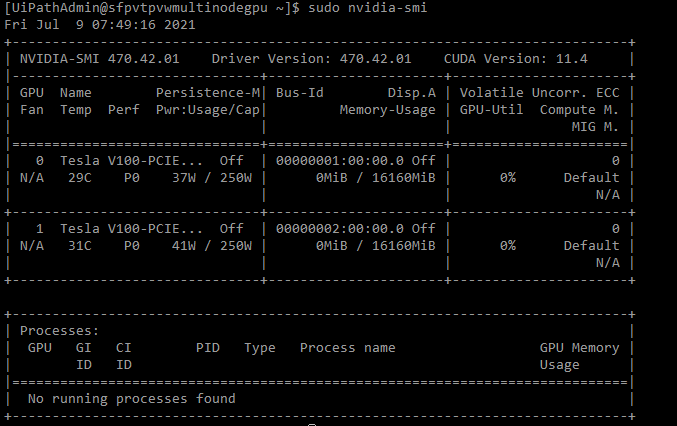
Adding a GPU node to the cluster
Step 1: Configuring the machine
To ensure the disk is partitioned correctly and all networking requirements are met, see Step 6: Configuring the disks.
Step 2: Copying the interactive installer to the target machine
-
SSH to any of the server machine.
-
Run the following command to copy the contents of the
UiPathAutomationSuitefolder to the GPU node (username and DNS are specific to the GPU node):sudo su - scp -r /opt/UiPathAutomationSuite <username>@<node dns>:/opt/ scp -r ~/* <username>@<node dns>:/opt/UiPathAutomationSuite/sudo su - scp -r /opt/UiPathAutomationSuite <username>@<node dns>:/opt/ scp -r ~/* <username>@<node dns>:/opt/UiPathAutomationSuite/
Step 3: Running the interactive installer to configure the dedicated node
-
SSH to the GPU Node.
-
Run the following commands:
sudo su - cd /opt/UiPathAutomationSuite chmod -R 755 /opt/UiPathAutomationSuite yum install unzip jq -y CONFIG_PATH=/opt/UiPathAutomationSuite/cluster_config.json ./bin/uipathctl rke2 install -i /opt/UiPathAutomationSuite/cluster_config.json -o output.json -k -j gpu --accept-license-agreementsudo su - cd /opt/UiPathAutomationSuite chmod -R 755 /opt/UiPathAutomationSuite yum install unzip jq -y CONFIG_PATH=/opt/UiPathAutomationSuite/cluster_config.json ./bin/uipathctl rke2 install -i /opt/UiPathAutomationSuite/cluster_config.json -o output.json -k -j gpu --accept-license-agreement
Enabling the GPU on the cluster
-
Log in to any server node.
-
Navigate to the installer folder (
UiPathAutomationSuite).cd /opt/UiPathAutomationSuitecd /opt/UiPathAutomationSuite -
Enable the GPU on the cluster by running the following command on any server node:
sudo ./bin/uipathctl rke2 gpu --enablesudo ./bin/uipathctl rke2 gpu --enable